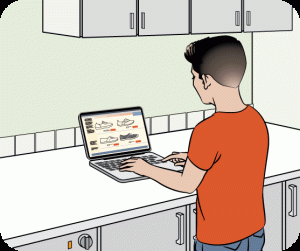
A couple of years ago, I started working and relaxing almost entirely from home. At first, it felt convenient—everything was just a screen away. But within weeks, I noticed something wasn’t right. My eyes felt tired, my head felt heavy, and even simple tasks started to feel exhausting.
It wasn’t just “being busy”—it was screen fatigue.
If you’re spending long hours on your phone, laptop, or TV at home, you might be dealing with the same issue. The good news is, you don’t need a complete lifestyle overhaul. Small, practical changes can make a big difference in how you feel every day.
Let’s break it down in a simple, realistic way.
What Is Screen Fatigue?
Screen fatigue (also called digital fatigue) happens when your eyes and brain become tired from prolonged screen use.
At home, it’s even more common because:
- Work, entertainment, and communication all happen on screens
- Breaks are often replaced with more screen time
- Lighting and posture are not always ideal
This constant exposure puts strain on both your eyes and mental energy.
Common Signs of Screen Fatigue
You may be experiencing screen fatigue if you notice:
- Eye strain or dryness
- Headaches after screen use
- Blurred vision
- Difficulty concentrating
- Feeling mentally drained without doing heavy work
I personally ignored these signs at first, but once I addressed them, my energy levels improved quickly.
Easy Ways to Avoid Screen Fatigue at Home
1. Follow the 20-20-20 Rule
This is one of the simplest and most effective habits:
- Every 20 minutes
- Look at something 20 feet away
- For 20 seconds
💡 Real-life insight: I set a reminder at first, and within a few days, it became a natural habit.
2. Take Real Breaks (Not Screen Breaks)
Scrolling your phone isn’t a real break:
- Step away from all screens
- Stretch, walk, or rest your eyes
- Take at least 5–10 minutes every hour
Your brain needs a true reset, not another screen.
3. Adjust Your Screen Setup
A poor setup increases fatigue quickly:
- Keep your screen at eye level
- Maintain a comfortable distance (about arm’s length)
- Sit with proper posture
💡 Tip: I raised my laptop using a simple stand—it reduced both eye and neck strain.
4. Improve Lighting in Your Space
Lighting plays a big role in eye comfort:
- Avoid glare on your screen
- Use soft, natural lighting if possible
- Don’t use screens in complete darkness
Balanced lighting reduces strain significantly.
5. Reduce Screen Brightness and Blue Light
Your screen shouldn’t be too harsh:
- Adjust brightness to match your room
- Use night mode or blue light filters
- Avoid very bright screens in low light
💡 Real-life insight: Lowering brightness slightly made my screen feel much easier on the eyes.
6. Blink More and Rest Your Eyes
We blink less when using screens:
- Make a conscious effort to blink
- Close your eyes for a few seconds during breaks
- Use eye drops if needed (after professional advice)
This helps prevent dryness and irritation.
7. Limit Multi-Screen Usage
Using multiple screens increases fatigue:
- Avoid using your phone while watching TV
- Focus on one screen at a time
- Reduce unnecessary screen switching
This reduces mental overload.
8. Create Screen-Free Time at Home
Your home should include time away from screens:
- Set “no-screen” hours in the evening
- Avoid screens before bed
- Spend time on offline activities
💡 Tip: I replaced late-night scrolling with reading—it improved both my eyes and sleep.
9. Stay Hydrated and Eat Well
Your body supports your eye health:
- Drink enough water throughout the day
- Eat foods rich in vitamins (like fruits and vegetables)
- Avoid excessive caffeine
Hydration helps reduce dryness and fatigue.
10. Move Your Body Regularly
Physical movement refreshes your mind and eyes:
- Stretch your neck and shoulders
- Take short walks
- Avoid sitting for long periods
💡 Real-life insight: Even a 5-minute walk made me feel more alert and less drained.
Simple Daily Routine to Prevent Screen Fatigue
| Time | Habit | Benefit |
|---|---|---|
| Morning | Adjust workspace & lighting | Prevent strain |
| Work hours | 20-20-20 rule | Reduce eye fatigue |
| Breaks | Walk/stretch | Refresh energy |
| Afternoon | Limit multitasking | Improve focus |
| Evening | Screen-free time | Relax mind |
| Night | No screens before bed | Better sleep |
Practical Tips That Actually Work
- Use larger text on your screen
- Keep screens clean and clear
- Use anti-glare settings or glasses if needed
- Take outdoor breaks for natural light exposure
- Set reminders for breaks until it becomes a habit
Common Mistakes to Avoid
- Taking breaks but still using your phone
- Using screens in a dark room
- Ignoring early signs of fatigue
- Keeping screens too close to your eyes
- Overworking without rest
Avoiding these mistakes can significantly improve your comfort.
FAQs About Screen Fatigue
1. How long can I use screens without fatigue?
It depends, but taking breaks every 20–60 minutes helps prevent strain.
2. Is screen fatigue permanent?
No. It’s usually temporary and improves with better habits.
3. Can screen fatigue affect sleep?
Yes. Blue light exposure can disrupt your sleep cycle.
4. Are eye exercises helpful?
Yes. Simple focusing and blinking exercises can reduce strain.
5. Should I stop using screens completely?
Not necessary. Balanced and mindful use is the key.
Conclusion
Avoiding screen fatigue at home doesn’t require drastic changes—it’s about building simple, consistent habits. By taking real breaks, adjusting your setup, improving lighting, reducing screen exposure, and giving your eyes the care they need, you can stay comfortable and productive every day.
Start small. Choose a few tips from this guide and apply them today. Over time, these habits will become natural—and you’ll notice less strain, more energy, and a better overall experience with your daily screen use.
Your comfort matters—take care of your eyes and mind, even in a digital world.